Lock Bosla with a PIN, and add a privacy key
Ask for a PIN, Face ID or fingerprint when Bosla opens, and lock personal text on your phone with a privacy key.
App lock
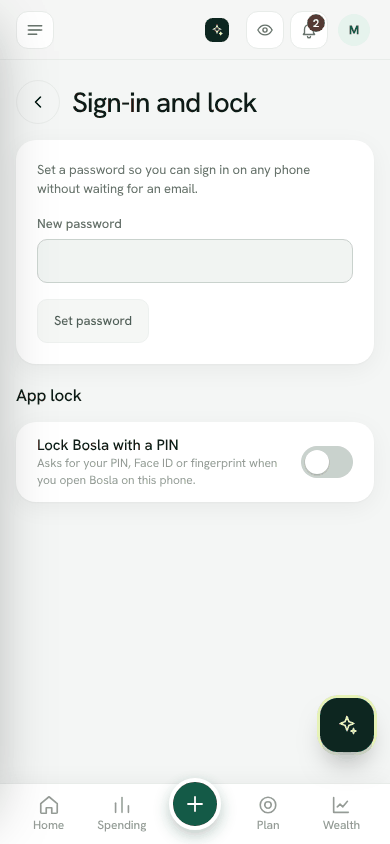
- 1Open Settings → Sign-in and lock.
- 2Switch on Lock Bosla with a PIN.
- 3Choose a 6-digit PIN and type it again. Do not use your bank card PIN.
- 4To unlock with your face or finger, switch on Face ID or fingerprint. Your PIN still works.
- 5Under Lock again after, choose Right away or a number of minutes.
App lock is set for each phone. Use Change PIN to change it. After too many wrong tries, you will need to sign in again. If you forget your PIN, choose Forgot PIN? Sign in again.
Hide amounts
When people can see your screen, open Settings → Language and look and switch on Hide amounts. Bosla shows ••• instead of money on every screen. Tap the eye on Home to switch it back.
Privacy key
With a privacy key, personal text and files are locked on your phone before they are saved. Bosla's servers only hold scrambled text, so not even our team can read it.
- Locked: shop names, notes, receipt photos, statements, investment notes and vault notes.
- Readable, so totals and alerts work: amounts, dates, categories, account and bill names, and item names for price comparison.
Turn it on
- 1Open Settings → Privacy.
- 2Tap Set up privacy key. The owner or spouse can do this.
- 3Save the key somewhere safe: Copy, Save as file or Share it to a password manager, or print it.
- 4Tick I have saved the key somewhere safe, then tap Turn on privacy key.
On other phones
Each family member enters the key once on each phone. The key is 25 letters and numbers; dashes and spaces don't matter. Give it to family separately from the invite, for example in person or by phone.
Open Sign-in and lockStill stuck? Write to us from Help in the app. Open Bosla · Updated 24 October 2026
Keep reading
- The privacy lockLock shop names and notes so only your family's phones can read them.
- Bosla AI and your dataWhat is sent to AI, what is never sent, and how to use your own key.
- The family vaultWrite down what your family needs to know in an emergency, and choose who can open it, and when.
- What the Bosla team can and cannot seeOur team sees account details only, never your entries, receipts, balances or vault, and your data is never used to train AI.