Add an entry, or just type "fuel 120"
Record spending and income in seconds, with quick typing and one-tap chips for what you usually buy.
Every entry keeps your balances and Safe to spend up to date. There are three quick ways to add one.
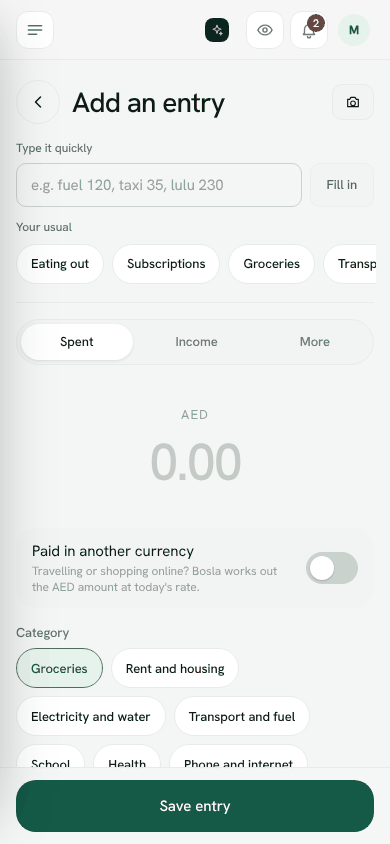
1. Type it quickly
- 1Tap + at the bottom of the screen (or Add an entry at the top on a computer).
- 2In Type it quickly, write what you spent and the amount, for example fuel 120, taxi 35 or lulu 230.
- 3Bosla shows how it reads it, such as Reads as 120: Transport and fuel · fuel.
- 4Tap Fill in. The form opens with the amount, category and shop filled in.
- 5Check the account it was Paid from, then tap Save entry.
Arabic works too, for example بنزين 120 or قهوة 18. Writing salary 15000 fills in an income entry.
2. Tap one of Your usual
Under the quick box, Your usual shows the kinds of spending your household records most often in the last 90 days. Tap one and the form opens with that category already chosen. Add the amount and save.
3. Type it in Ask Bosla
Open Ask Bosla and type something like fuel 120. Instead of asking a question, Bosla shows a button such as Log AED 120 · Transport and fuel · #fuel. Tap it to open the filled-in form, then save. Anything with a question mark is treated as a question.
The full form
If you prefer, fill in the form yourself:
- Type of entry: Spent or Income, or tap More for Sent home, From family, Transfer, Refund or Investment.
- Amount, the account it was Paid from, and the Category.
- Essential: switch this on for things your household cannot do without, like rent or groceries.
- Where, Date and Note are optional. You can also add Tags and set it to Repeats.
- Paid in another currency: switch this on when travelling or shopping online. Bosla works out the amount in your currency at today's rate.
Change or delete an entry
Open Spending and tap the entry. Change it and tap Save changes, or tap Delete entry. Deleting puts the account balance back.
Add an entryStill stuck? Write to us from Help in the app. Open Bosla · Updated 24 October 2026
Keep reading
- Start here: your first ten minutesSet up your household, add your accounts and see your safe-to-spend number.
- What is Bosla?Bosla helps your household see what is safe to spend until payday, after bills and savings.
- Set up your payday and accountsTell Bosla when you are paid and add the accounts you spend from, so Safe to spend is right from day one.
- Adding spending and incomeThree ways to keep your numbers up to date, from fastest to most automatic.