Add Bosla to your home screen
Install Bosla from your browser so it opens like an app, updates by itself and can send notifications.
iPhone and Android apps are coming soon. Until then, add Bosla to your home screen from your browser. It works like an app and updates by itself.
On iPhone
- 1Open Bosla in Safari.
- 2Tap the Share button.
- 3Choose Add to Home Screen, then Add.
- 4From now on, open Bosla from the new icon.
On Android
- 1Open Bosla in Chrome.
- 2Tap the menu (three dots).
- 3Choose Install app or Add to Home screen, then confirm.
Shortcuts from the icon
On phones that support app shortcuts, long-press the Bosla icon to jump straight to Add an entry, Scan a receipt, Shopping list or Safe to spend.
Turn on phone notifications
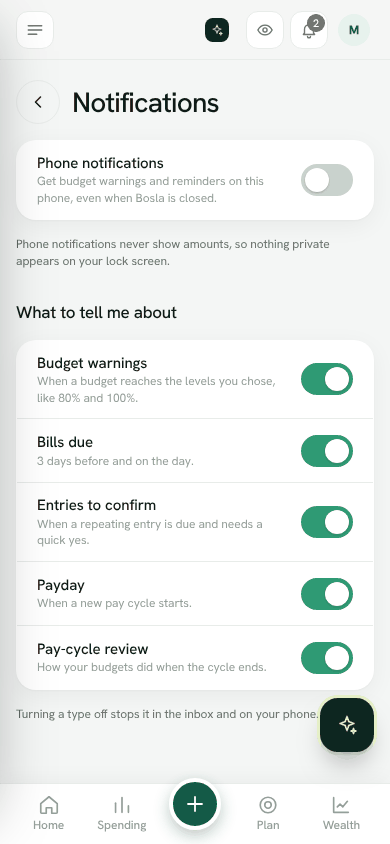
- 1Open Settings → Notifications.
- 2Under Phone notifications, turn them on for this phone and allow them when your phone asks.
- 3Choose what to be told about: Budget warnings, Bills due, Payday and Pay-cycle review.
Phone notifications never show amounts, so nothing private appears on your lock screen.
Updates
When a new version is ready, Bosla shows A new version of Bosla is ready. Tap Update to load it.
Open notification settingsWas this helpful?
Still stuck? Write to us from Help in the app. Open Bosla · Updated 24 October 2026
Keep reading
- Start here: your first ten minutesSet up your household, add your accounts and see your safe-to-spend number.
- What is Bosla?Bosla helps your household see what is safe to spend until payday, after bills and savings.
- Set up your payday and accountsTell Bosla when you are paid and add the accounts you spend from, so Safe to spend is right from day one.
- Adding spending and incomeThree ways to keep your numbers up to date, from fastest to most automatic.